
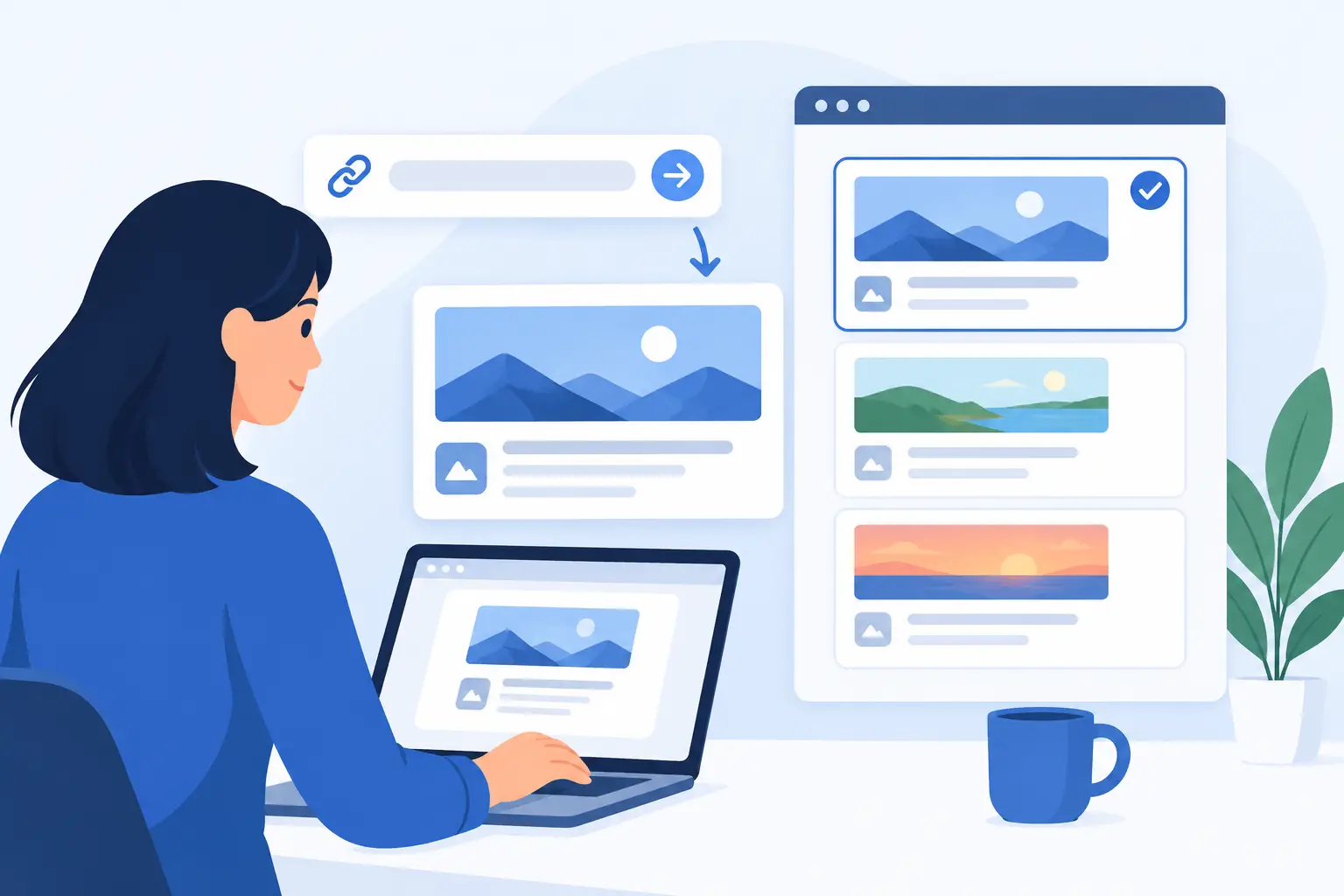
A great post can still arrive as a grey box, a broken image, or yesterday’s headline when someone shares it. That is a distribution problem, not a design detail. Knowing how to test link preview cards before a campaign, launch, or newsletter goes live protects the first impression people see before they ever reach your site.
A link preview is the card generated from your page metadata: title, description, image, URL, and sometimes the site name. Most platforms use Open Graph tags to build it. They may read the same tags, but they do not always render them the same way. One URL can look polished on LinkedIn and cropped, stale, or image-less in Slack.
Start with the URL you will actually share
Test the final, public URL, not a staging link or a page copied from your browser before it has fully published. Small differences matter. A trailing slash, tracking parameter, redirected URL, or canonical URL can cause a platform to fetch a different version of the page than the one you expected.
Open the page in a private browser window first. Confirm it loads without a login, cookie wall, region restriction, or bot challenge. Social crawlers are not people. If your image or metadata only appears after JavaScript runs in a visitor’s browser, some crawlers may not see it at all.
Then check the page source or your SEO plugin settings for the basics. Your page should provide an `og:title`, `og:description`, `og:image`, and `og:url`. The image needs to be publicly accessible over HTTPS. If a crawler receives a 403 error, an oversized file, or HTML instead of an image, the preview can fail even when the page looks perfect in your browser.
How to test link preview across platforms
Use a multi-platform preview checker as your first pass. Paste the exact URL and review how it appears for the channels your audience actually uses: X, LinkedIn, Slack, WhatsApp, Facebook, iMessage, and similar apps. This is faster than posting repeatedly, and it exposes differences that a single network-specific debugger will miss.
Look at the card as a reader would, not as the person who made it. Is the title readable at a glance? Does the image crop remove the product, face, or key message? Does the description add context, or repeat the headline? Does the domain build trust?
After that first pass, test the real destination where you plan to share. Send the link in a private Slack channel, a small group chat, or a draft post where the platform supports it. Preview tools show what the crawler can detect; the live app shows the final rendering behavior. You need both when the share is high stakes.
Do not assume each platform has identical rules. A wide social image may look ideal on one network and feel cramped on another. Some apps prioritize the title. Others give the image more visual weight. Messaging apps can also cache aggressively, so the version you see may depend on when that specific URL was first shared.
What a good preview should prove
A passing preview is more than “an image appeared.” It should prove that the right page data is reaching the right card.
Check the title first. It should be current, specific, and short enough to survive truncation. If your page title includes a long brand suffix, category path, or SEO phrase, the shared card may lead with clutter instead of the reason to click.
Check the image next. The strongest OG image does not simply shrink a blog hero image. It is designed for the fixed, compact frame of a social card. Use high contrast, readable type, safe margins, and one clear focal point. Avoid placing critical copy near the edges, where crops can cut it off.
Also verify the description, URL, and site name. A missing description is not always a failure. On image-led shares, a concise title may do more work. But an outdated price, old event date, wrong author, or staging domain is a clear sign that metadata is disconnected from the page you are publishing.
For a quick review, assess these four questions:
- Does the card identify the page in one second?
- Does the visual still make sense when cropped?
- Is every detail current for this URL?
- Would you trust and want to click it in a busy feed?
If the answer is no, fix the source before trying to force a different result in the social app.
When the preview is wrong but your page is right
The most frustrating link-preview issue is a stale card. You update the title or OG image, refresh your browser, and the old version keeps appearing in messages and posts. Usually, the platform is serving a cached crawl, not ignoring your change.
First, confirm that the live page source contains the new metadata. If it does, use the platform’s available sharing debugger or re-scrape control to request a fresh fetch. Then wait and test again. A re-scrape can update the platform cache, but it cannot always replace cards already generated inside every private conversation.
If the new metadata is not in the page source, the issue sits upstream. Common causes include a CMS cache, CDN cache, SEO plugin conflict, theme-level tags overriding page-level tags, or a JavaScript-generated tag that the crawler never receives. Check for duplicate `og:image` or `og:title` tags too. When several values are present, the crawler may select one you did not intend.
Image problems have their own pattern. An image may fail because the URL redirects, requires authentication, exceeds a platform limit, uses an unsupported format, or returns too slowly. Test the image URL directly in a private window. If it cannot load consistently there, do not expect a social crawler to handle it gracefully.
Build a workflow that prevents repeat checks
Manual testing is reasonable for a homepage, a product launch, or a major campaign. It becomes a time sink when you publish dozens or hundreds of pages. A blog, documentation library, marketplace, or SaaS site needs every URL to carry its own accurate visual card without someone opening a design tool for each one.
That is where dynamic OG image generation changes the workflow. You create a branded layout once, connect it to page fields such as title, featured image, author, date, price, or category, and let each page populate its own preview. Instead of asking, “Did we make an image for this post?” the question becomes, “Is the page data correct?”
getwowlink is built for this model: design once, connect once, and every page gets its own OG image. It is particularly useful when marketing owns the visual standard while engineering needs metadata to remain dependable across a growing site. Your existing SEO setup can still manage the rest of your metadata while the card image stays consistent and current.
Automation is not an excuse to stop checking. It changes what you check. Review a few representative pages from each content type: a long-title article, a short product page, a page with no featured image, and a page with unusual characters or a long price. These edge cases reveal whether your mapping and layout will hold up at scale.
Test before the moment matters
Make preview testing part of publishing, not a rescue task after the social post is live. For recurring content, assign a simple owner and trigger: test the first page after a template change, test every new campaign URL, and recheck any page whose title, image, or canonical URL changes.
For launches, test early enough to allow for caching delays. If a press announcement, partner email, or founder post depends on a specific card, do not publish the page five minutes before the share. Publish, inspect the metadata, trigger a fresh crawl where needed, and verify the card in the real channel.
The best link previews feel invisible because they simply look right. That is the point. Every shared URL should arrive as a clear, recognizable piece of your brand, ready to earn the click.