


Open Graph images for every Shopify product
Shopify shares the product photo as is: cropped to a wide card, with no price. One snippet in your theme gives every product, collection, page and blog post its own preview, with the price on it. No app.
Copy your snippet from getwowlink
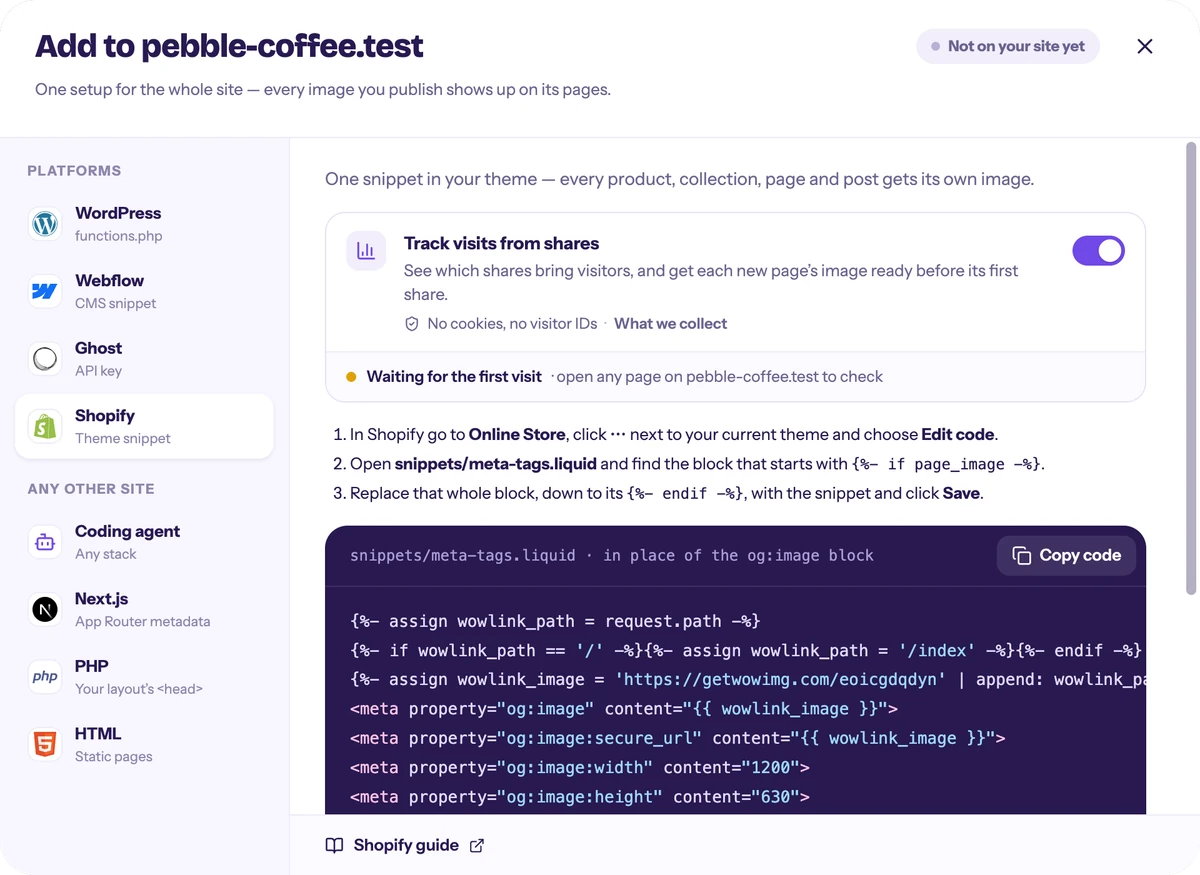
Paste your store, pick one of three designs and publish it. Then open Add to site → Shopify and click Copy code: the snippet already has your site’s ID in it.
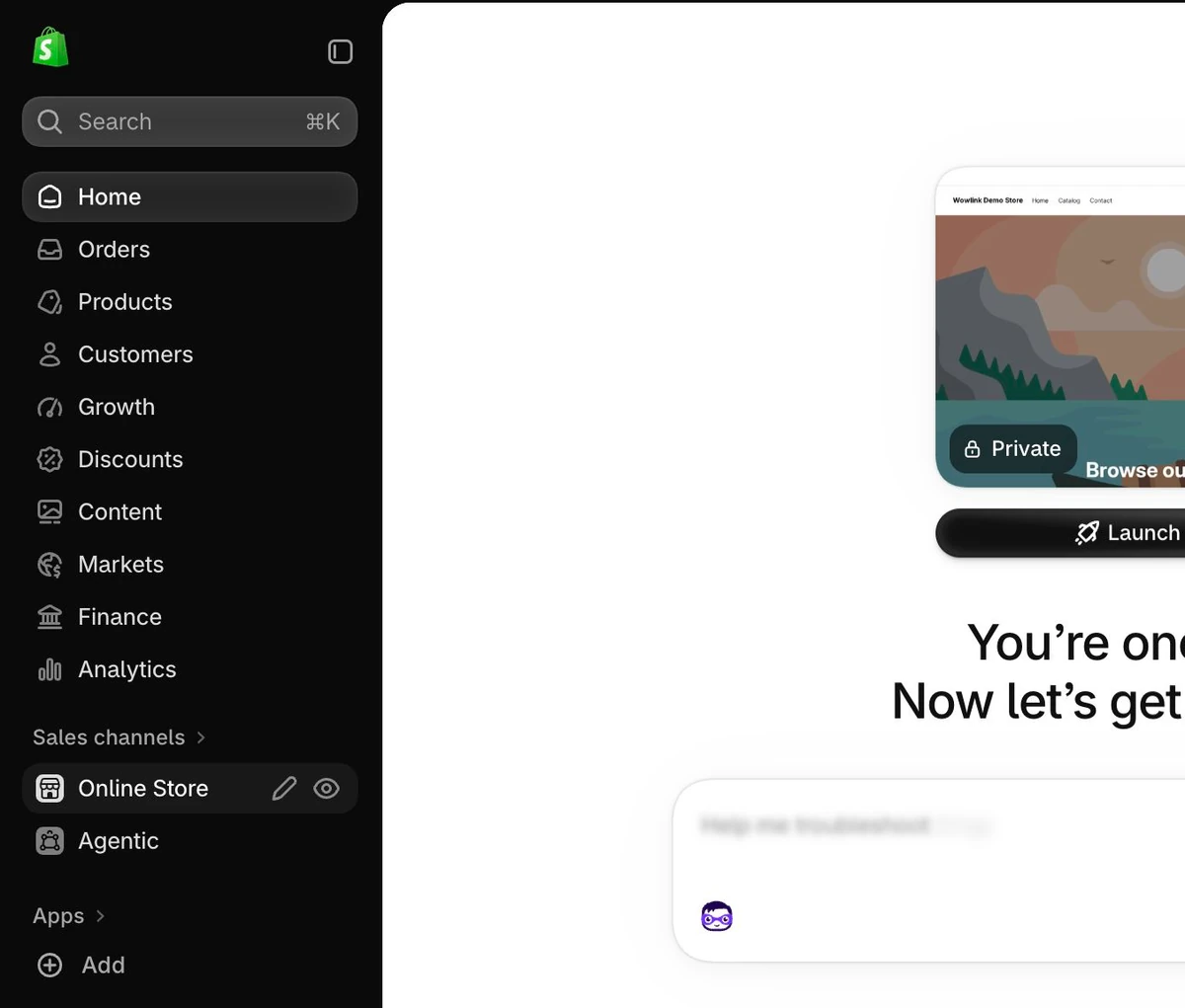
Open Online Store in Shopify
Log in to your Shopify admin. In the left sidebar, under Sales channels, click Online Store. It opens the page with your themes.
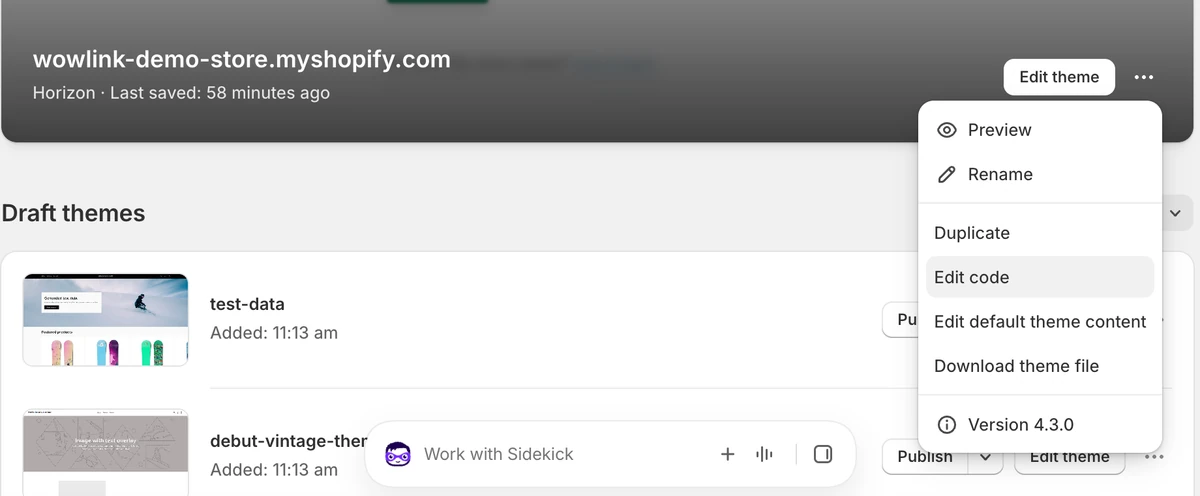
Open your theme’s code
The top card is your current theme, the one shoppers see. Click ⋯ next to Edit theme and choose Edit code. Want to try it safely first? Choose Duplicate in the same menu, edit the copy and publish it once you’ve checked it, as Shopify’s guide to editing theme code also suggests.
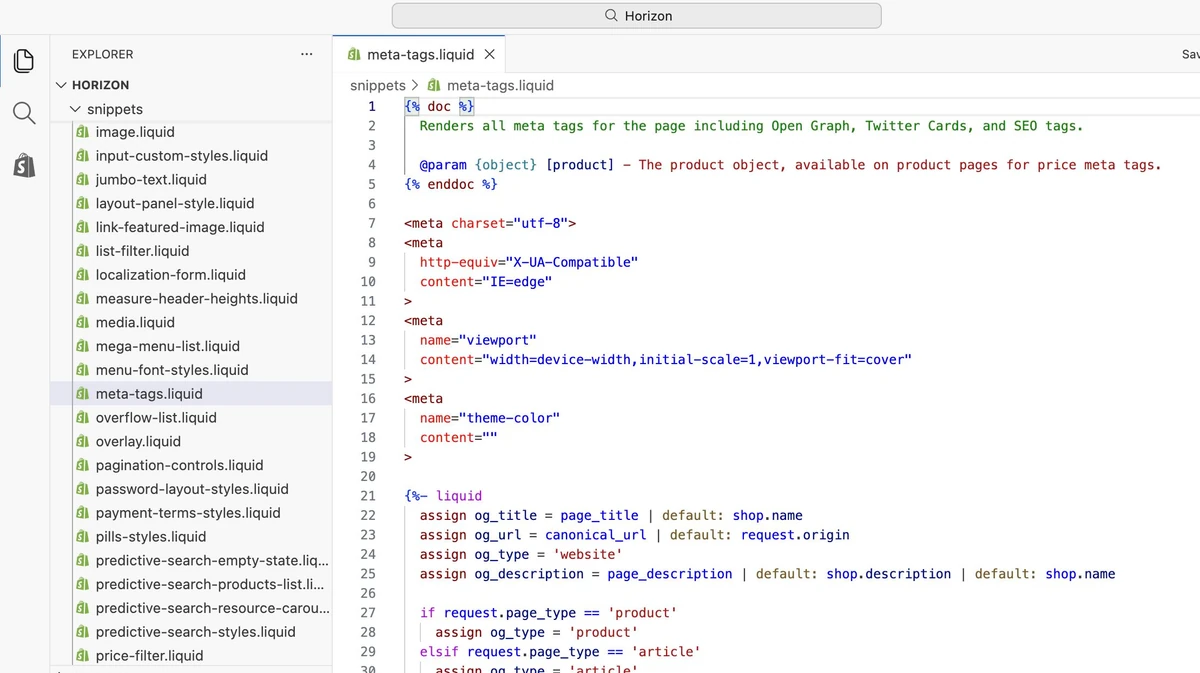
Open snippets/meta-tags.liquid
The code editor opens with the theme’s files on the left. Click the snippets folder to open it, scroll down to meta-tags.liquid and click it. Faster: type meta-tags into the search bar at the top and press Enter. The file opens on the right.
Select the og:image block
Click in the file, press Cmd+F (Ctrl+F on Windows) and search for page_image to jump to the block. It starts with {%- if page_image -%} and ends with {%- endif -%}: lines 57–74 in Horizon, 22–27 in Dawn. Click before the first line, then hold Shift and click after the last one, so the whole block is selected, both lines included.
{%- if page_image -%}
  <meta
    property="og:image"
    content="http:{{ page_image | image_url }}"
  >
  <meta
    property="og:image:secure_url"
    content="https:{{ page_image | image_url }}"
  >
  <meta
    property="og:image:width"
    content="{{ page_image.width }}"
  >
  <meta
    property="og:image:height"
    content="{{ page_image.height }}"
  >
{%- endif -%}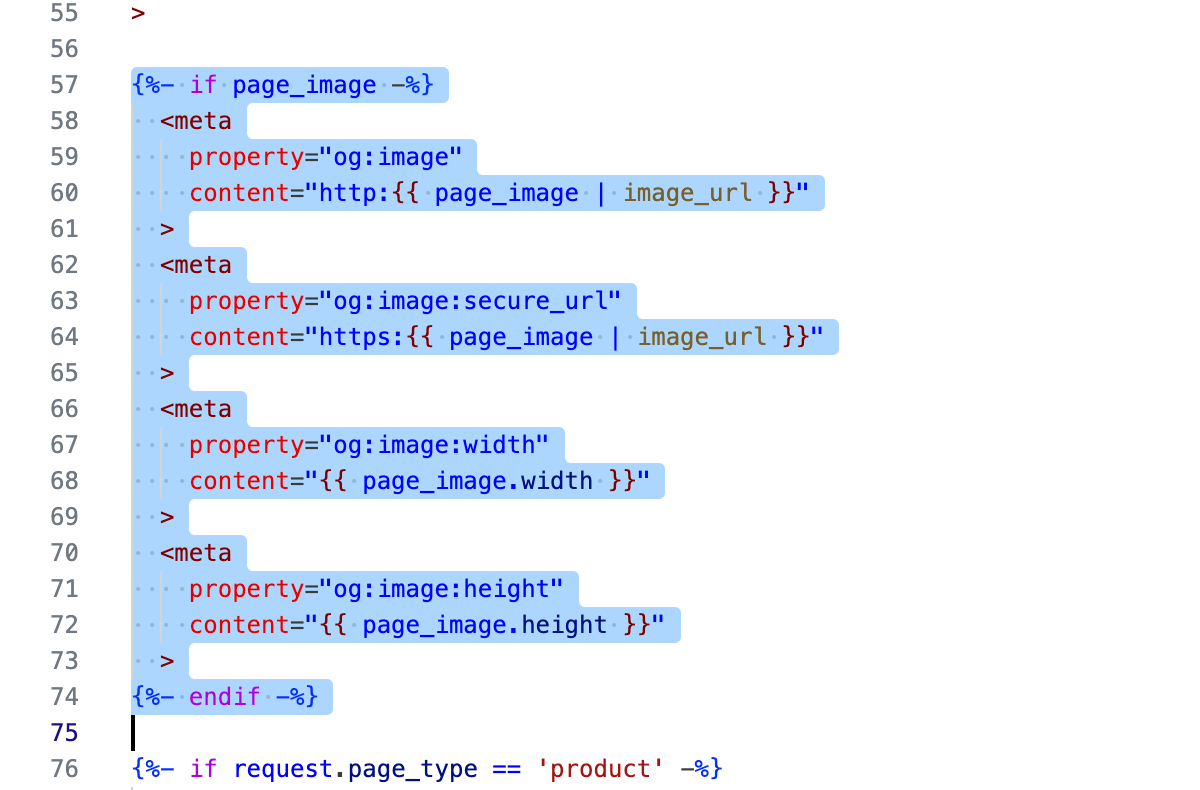
Paste the snippet and save
Press Cmd+V (Ctrl+V) to put the snippet in place of the block, then click Save at the top right. When the dot next to the file name is gone, the file is saved. Replace the block rather than adding below it: the theme’s photo would stay first, and most apps show the first og:image.
{%- assign wowlink_path = request.path -%}
{%- if wowlink_path == '/' -%}{%- assign wowlink_path = '/index' -%}{%- endif -%}
{%- assign wowlink_image = 'https://getwowimg.com/a1b2c3d4e5' | append: wowlink_path | append: '.png' -%}
<meta property="og:image" content="{{ wowlink_image }}">
<meta property="og:image:secure_url" content="{{ wowlink_image }}">
<meta property="og:image:width" content="1200">
<meta property="og:image:height" content="630">
<meta name="twitter:image" content="{{ wowlink_image }}">
a1b2c3d4e5 is a sample site ID — Add to site gives you the code with yours.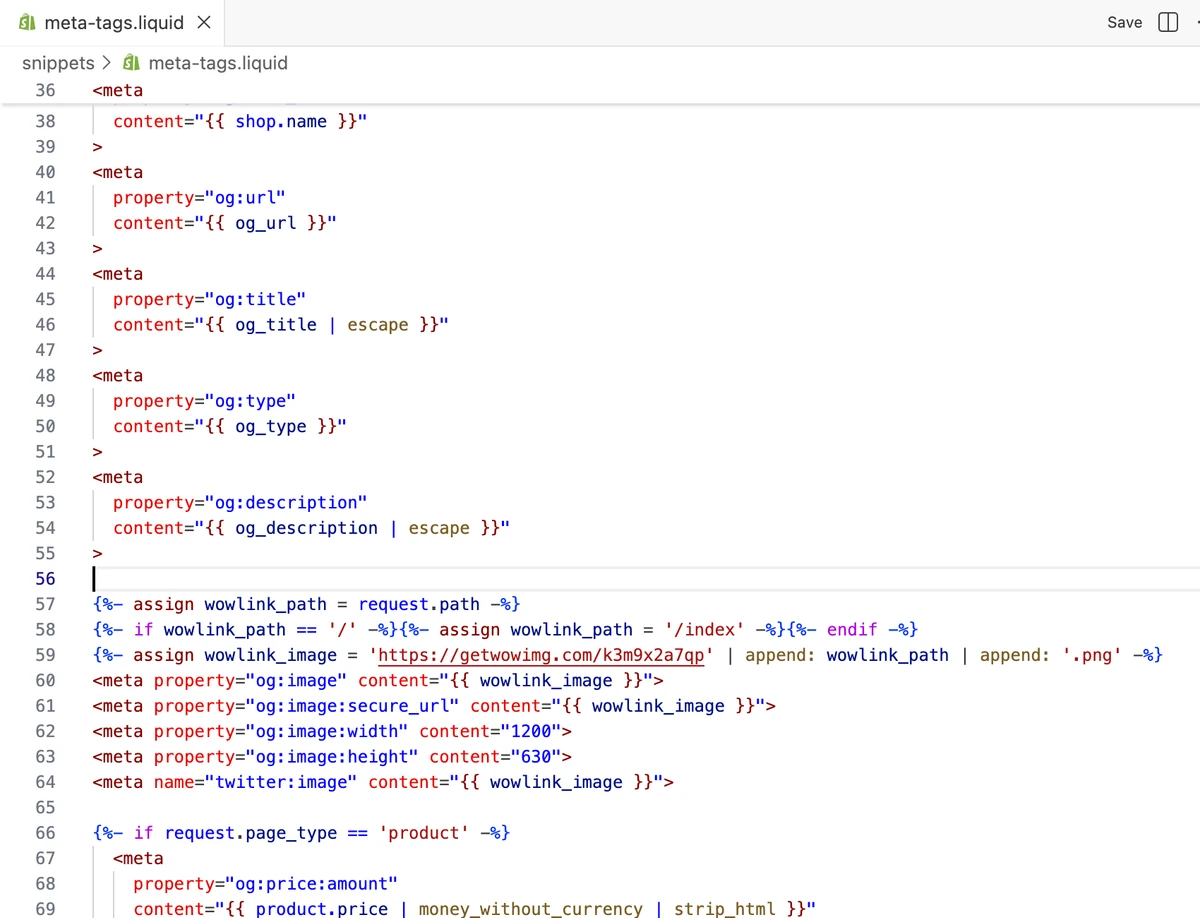
Optional: see what your shares bring
Keep the visit script and Analytics counts the visits your shared links bring, and from which apps: X, LinkedIn, Facebook, WhatsApp, Telegram. A new page also gets its image on its first visit, before anyone shares it. No cookies, no visitor IDs. The snippet ends with this script line while Track visits from shares is on in Add to site, as it is by default. Don’t want it? Turn the switch off and copy the snippet again.
<script async src="https://getwowimg.com/v.js" data-site="a1b2c3d4e5"></script>a1b2c3d4e5 is a sample site ID — Add to site gives you the code with yours.Check a product link
Open any product in your store, copy its link and paste it into the OG checker. You’ll see the new preview on X, LinkedIn, WhatsApp, Facebook, Slack and iMessage. A page’s image is made the first time it’s shared: its title, price and product photo.
Open the OG checkerWhy a snippet and not an app
Shopify apps can add tags to your store’s head, but they can’t remove the og:image your theme already prints. A page would have two images, and Facebook and most other apps take the first one: the theme’s. Replacing the block in the theme leaves one og:image on every page, yours. It also adds the twitter:image Horizon and Dawn don’t print, so X shows your preview too.
Before and after
Questions
Is there a Shopify app?
Not yet. Apps can add tags to your store’s head but can’t remove the og:image your theme prints, so a page would have two images and most apps take the theme’s. The snippet replaces it: one og:image, yours.
Which pages get an image?
Every page of the store: home, products, collections, pages and blog posts. Titles, prices and photos come from each page; each section can have its own design.
My theme has no meta-tags.liquid.
Search the theme code for og:image (the search icon in the editor’s left bar) and replace the tags you find the same way. If the theme prints og:image in more than one place, replace them all.
What about the social sharing image in Preferences?
Shopify shows it on pages without an image of their own, like the home page. With the snippet every page gets its own 1200×630 image, the size X, LinkedIn, Facebook and WhatsApp expect, so the social sharing image is no longer used. You can leave it: it comes back if you ever remove the snippet.
Will a theme update remove it?
Shopify adds a theme update as a new copy of the theme, and code you edited may not carry over. After switching themes or updating yours, check meta-tags.liquid and paste the snippet again if it’s gone.
Can I edit the code of a paid theme on trial?
No. Shopify lets you edit a paid theme’s code only after you buy it. Free themes like Horizon and Dawn can be edited right away.
Does it work with Shopify Markets and other languages?
Yes. Each market and language has its own address, like /fr-ca/products/…, and gets its own image with the translated title and the local price. Each one counts as a page.
I don’t see the new preview yet.
A store behind a password shows crawlers the password page, so previews work once the store is open. Apps also keep their copy of a link for a while: run an old link through Facebook’s or LinkedIn’s debugger once.
How do I undo it?
Open snippets/meta-tags.liquid and go back to the original version in the Timeline under the file list, or paste the theme’s block from step 3 back.
Try it on your site
Three designs made from your site — no sign-up to try.
