
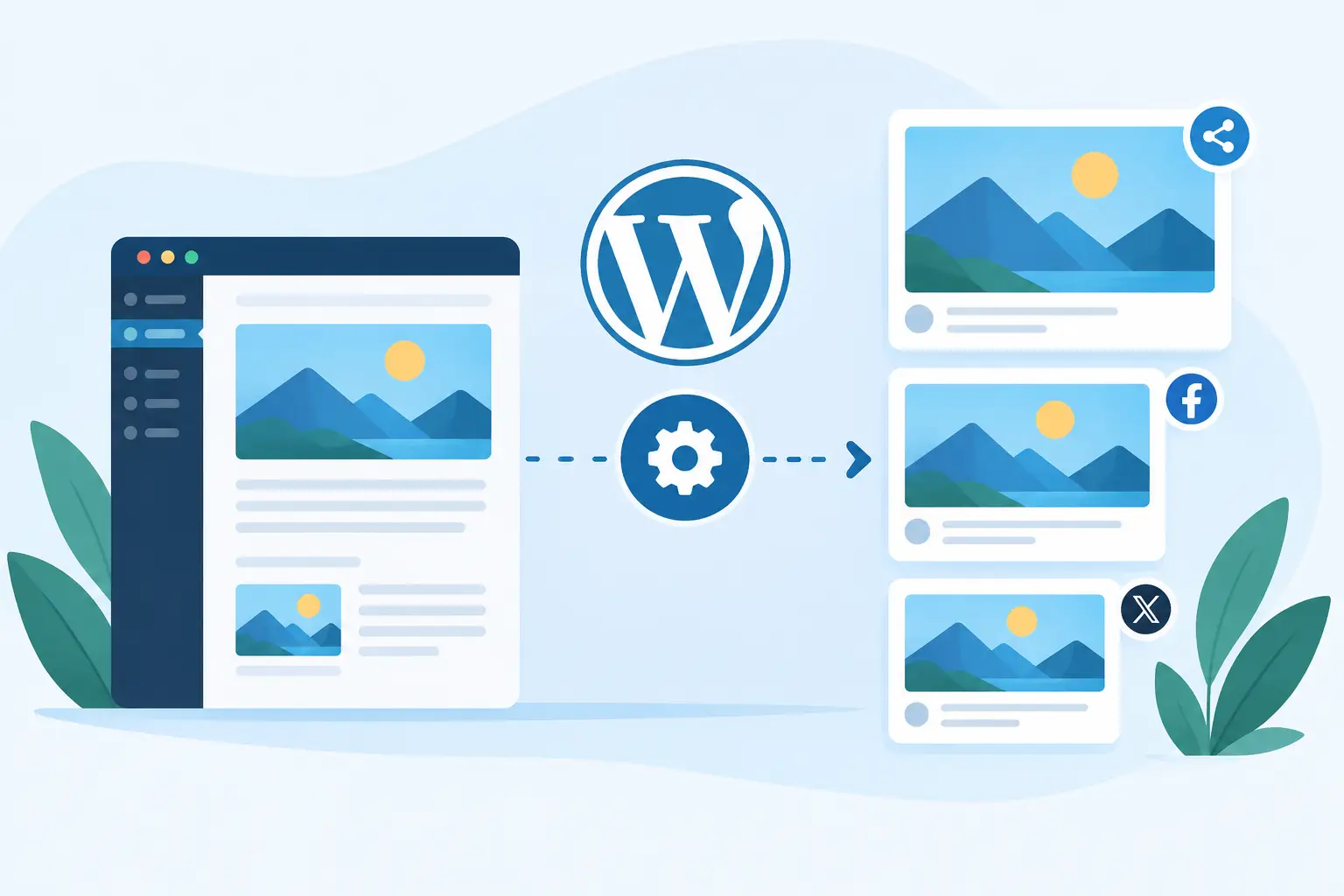
A great WordPress post can still arrive on LinkedIn, Slack, or iMessage as a grey rectangle, a random featured image, or no image at all. WordPress automatic OG images fix that distribution problem by giving every URL a visual card that looks intentional before anyone clicks.
That matters more than most publishing workflows admit. People often encounter your content as a shared link, not on your site. The preview card is the first version of your brand they see. If it is cropped badly, missing context, or carrying an outdated title, it makes even strong work feel unfinished.
Why WordPress shares break at scale
Open Graph tags are small pieces of page metadata that tell platforms what to display when someone shares a URL. The key fields usually include a title, description, URL, site name, and `og:image`. X also reads similar card metadata. When the image field is absent or points to an unsuitable file, each platform makes its own imperfect choice.
WordPress can publish hundreds or thousands of pages with very little friction. That is the advantage. It also creates the image problem. A manual process might work for a launch post or a homepage, but it breaks when you publish weekly articles, update product pages, maintain documentation, or run location pages for clients.
The usual fallback is the featured image. Sometimes that is enough. A photography portfolio, recipe site, or editorial publication may already have a strong image for every post. But featured images were designed for page layout, not necessarily social previews. They may have the wrong crop, no readable headline, inconsistent colors, or no indication that the page belongs to your brand.
Then there is the Canva workflow: duplicate a template, change a headline, export a file, upload it to WordPress, set it in an SEO plugin, and hope the social platform refreshes its cache. It produces attractive results for a handful of high-value pages. It is not a publishing system.
What automatic OG images should actually do
Automation should not mean placing the same logo on every URL. It should create a consistent visual system while making each preview specific to the page being shared.
For a typical WordPress site, that means an OG image can pull in the post title, featured photo, category, author, publish date, price, product name, or domain. A blog article may use a large headline and author line. A SaaS changelog can show the release title and version. A WooCommerce product page can show the product image and price. The layout stays on-brand, while the content changes automatically.
The best setup follows a simple principle: design once, connect once, and every current and future page gets its own OG image. You should be able to update your colors, type treatment, logo placement, or template without opening old posts one by one.
That does require a little judgment. One universal design is efficient, but it can become repetitive for a site with very different content types. A practical middle ground is to create separate designs for posts, product pages, documentation, and landing pages. You still avoid manual production, while each section gets a card that fits its purpose.
How WordPress automatic OG images work
There are two jobs in any OG-image setup. First, WordPress has to expose reliable page data. Second, an image system has to turn that data into a rendered image and make WordPress point `og:image` to it.
Many teams already use Yoast SEO, Rank Math, or another SEO plugin to manage metadata. Keep it. Those plugins are useful for titles, descriptions, canonicals, XML sitemaps, and the broader technical SEO layer. Your OG-image workflow should complement that setup, not replace it.
A dedicated dynamic image service can use WordPress fields as data sources. For example, it can map the page title to a headline layer, map the featured image to a photo area, and map the site URL to a small footer. When a new post is published, its page data fills the design automatically. The service renders and hosts the final card, then WordPress outputs the matching image URL in its social metadata.
With getwowlink, that workflow is built around a visual editor rather than custom image code. You can set a reusable branded design, map live WordPress data into it, and control what each template displays without sending every layout change through a developer.
The important detail is that the image should be generated per page, not merely selected per page. A generated URL can represent a complete card built from live content. That is what turns social previews from a recurring design task into part of your publishing infrastructure.
Choose the page fields carefully
Start with the information people need to recognize the shared page in one second. On most article cards, the title is essential. The logo or publication name adds trust. A featured photo can help, but only if it has enough visual quality and contrast at social-card size.
Avoid trying to fit the full page into the image. Tiny URLs, long subtitles, multiple badges, and several calls to action usually become noise. Keep the hierarchy clear: what is this, who published it, and why should someone notice?
Long titles need rules too. Your template should handle line wrapping gracefully and cap text before it collides with other elements. This is where rigid social-image templates tend to disappoint. They look fine in a demo and fail on the first 110-character article title.
A setup process that does not create more work
Before switching anything on, audit a small sample of your URLs. Check the homepage, a recent post, an older post, a category page, a product page if relevant, and one page with a long title. Look at what they currently show when shared to the channels your audience actually uses.
Build a primary card at the standard landscape social format, typically 1200 by 630 pixels. Use brand colors with enough contrast, a readable type size, and a logo that remains recognizable on a phone. Treat this as a distribution asset, not a miniature website banner.
Next, map your WordPress data fields. Use post title for the headline, featured image where it makes sense, and category or author only when it adds useful context. Preview several real pages before applying the design sitewide. A template that works for one polished launch post is not proof that it works for an archive of varied content.
Then set the generated image as the page's Open Graph image while leaving the rest of your SEO configuration intact. Once live, test the exact URL in a multi-platform link-preview checker. Test more than one platform. Facebook, LinkedIn, X, Slack, WhatsApp, and iMessage do not all display previews in exactly the same way.
Caching is the part people mistake for failure
You update an OG image, share the URL again, and the old card appears. That is usually caching, not a broken design.
Social platforms store preview data so they do not need to fetch your page and image every time someone posts a link. Your WordPress cache, CDN, browser, and the platform itself may all have a copy. Some channels refresh quickly. Others hold onto an old image for longer than you expect.
A clean workflow makes this manageable. Use a preview checker to fetch the page again, confirm the HTML is serving the new `og:image`, and verify that the image URL returns a valid file. If the platform still shows an old card, give its cache time or use that platform's available refresh method.
Do not solve cache behavior by changing filenames manually for every post. That creates a different maintenance problem. Use a system that renders predictable image URLs and can update them when content changes.
Common WordPress OG image mistakes
The first mistake is assuming a featured image equals a social card. It can, but only when the image works at the required aspect ratio and communicates enough context on its own.
The second is setting a global default image and calling it done. A default is useful as a fallback for pages without visuals. It should not be the main experience for every article, product, or documentation page.
The third is forgetting old content. Your new publishing process may look excellent while thousands of existing URLs keep sharing with dated or inconsistent previews. Automatic generation is especially valuable here because it can bring the archive into the same brand system without a manual retrofit.
Finally, do not let multiple plugins fight over the same tags. If two tools output different `og:image` values, platforms may choose either one. Decide which tool owns the final social image field, then verify the source code on a few representative pages.
Make the shared link feel like part of the product
A WordPress site is not finished when the page looks good in the browser. It is finished when the link carries that same clarity into the places where people share, discuss, and decide whether to click. Build the card system once, test it against real pages, and let every new URL show up ready for attention.
