
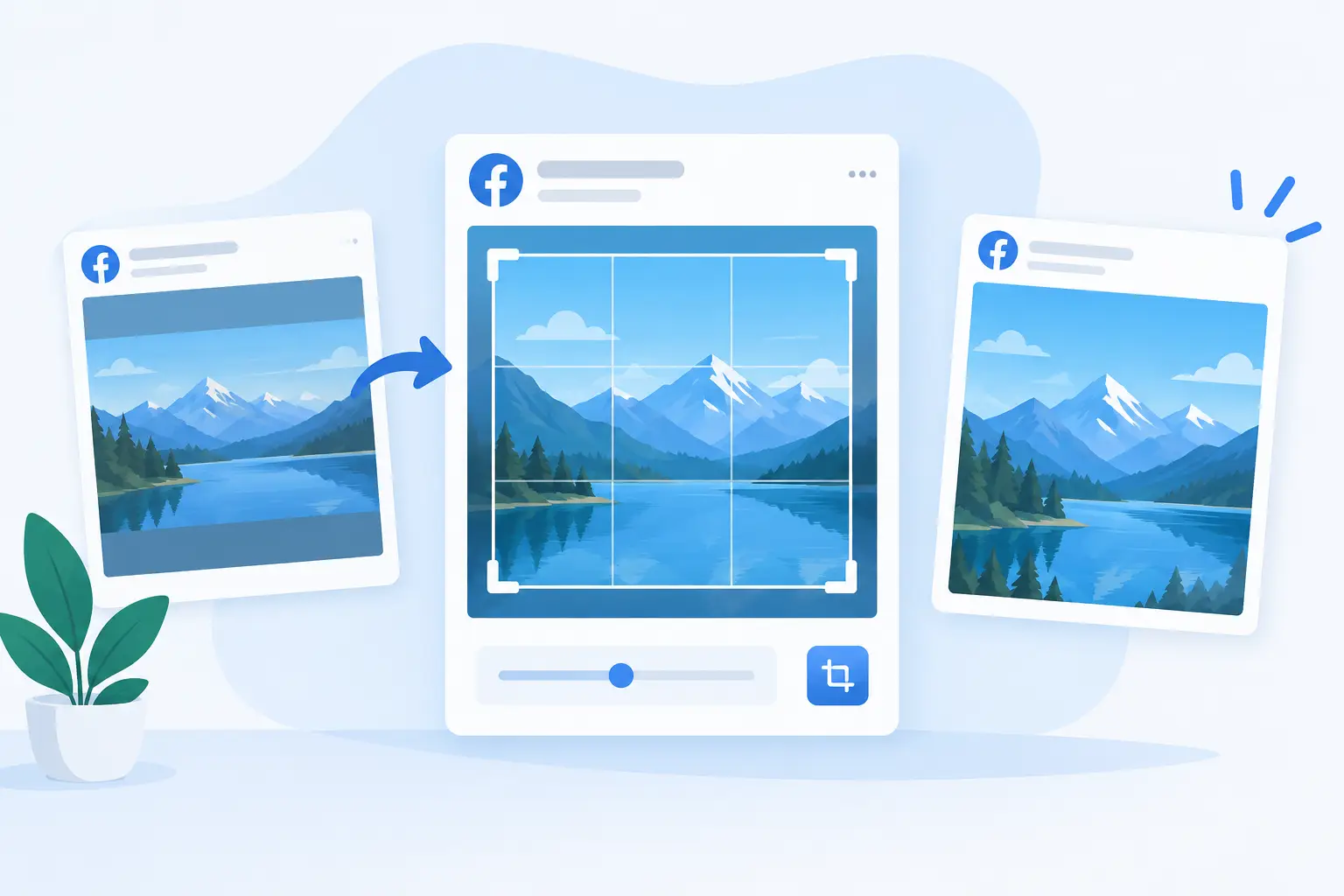
Your link looked perfect on your site. Then someone shared it on Facebook and the headline was cut in half, the product screenshot disappeared, or the card showed an old image from three edits ago. A facebook og image crop fix is rarely just a design problem. It is usually a combination of image dimensions, metadata, cached previews, and a page that is sending Facebook mixed signals.
The frustrating part is that Facebook can make an otherwise polished launch, article, or landing page look unfinished before anyone clicks. The good news: once you separate cropping from caching and tag errors, the fix is predictable.
Why Facebook Crops OG Images
Facebook builds its share card from Open Graph metadata, most importantly the `og:image` tag. That tag should point to the exact image you want Facebook to fetch, store, and display. If the image has the wrong proportions, is too small, or contains critical content near an edge, the preview can look cropped even when the image itself is technically valid.
For standard Facebook link previews, create your OG image at 1200 by 630 pixels. That is a 1.91:1 aspect ratio and gives Facebook enough resolution to render a sharp card across desktop and mobile. Smaller images can work, but they leave less room for compression, inconsistent rendering, and future reuse on other platforms.
The crop often happens because teams reuse a blog featured image, a hero graphic, or a square product image as their `og:image`. Those formats were designed for a page layout, not a horizontal social card. Facebook has to fit them into its own preview frame, and something gives.
A second cause is composition. Even a 1200 by 630 image can feel cropped if the logo, title, or face sits too close to the outer edge. Preview surfaces vary. Some interfaces trim a few pixels, some display a smaller version, and some place visual emphasis on the center. Treat the outside edge as a bleed area, not valuable real estate.
The Facebook OG Image Crop Fix: Start With the Source File
First, make a dedicated image at 1200 by 630 pixels. Do not rely on Facebook to make a square, portrait, or extra-wide image behave like a share card.
Keep essential elements inside a safe zone. A practical rule is to leave at least 60 pixels of breathing room on every side, and more if your design uses large type or a logo lockup. Put the focal point in the center area. This does not mean every card needs a centered layout. It means the message should survive a tighter display without losing meaning.
If your image includes text, make it large enough to read at thumbnail size. Facebook previews are often seen in a feed, in a group, or inside a chat thread. A beautiful 24-pixel headline may be readable in an editor and useless in a real share card. Use fewer words, stronger contrast, and one clear visual hierarchy.
Avoid building the card around a photo that only works when uncropped. If a product screenshot or portrait is the main asset, place it within a branded frame or background rather than stretching it edge to edge. You get more control, and the design remains recognizable when another platform uses a slightly different treatment.
Check the OG Tags, Not Just the Image
A correct image file cannot help if Facebook is fetching the wrong URL. Open Graph tags belong in the page's HTML head and should be available in the initial response Facebook receives.
At minimum, check that each shared page outputs one clear `og:image` value, along with `og:title`, `og:description`, and `og:url`. The image URL should be absolute, publicly accessible, and return the actual image without requiring a login, browser session, or JavaScript rendering.
Common problems include:
- Multiple plugins outputting competing `og:image` tags
- A CMS retaining an old featured image after a page update
- Relative image URLs that work in a browser but confuse a crawler
- A CDN, firewall, or bot protection rule blocking Facebook's scraper
- JavaScript adding tags after page load instead of serving them in the HTML
If you use WordPress, this can happen when your SEO plugin, theme, and a social-sharing plugin each attempt to control Open Graph metadata. On custom sites, it often happens when a framework's metadata component conflicts with a manually added tag. One page should have one source of truth for its social preview data.
Also check image format and delivery. JPG and PNG are safe choices for most branded cards. A huge PNG may still load, but it creates unnecessary fetch and processing overhead. For photo-heavy designs, a well-compressed JPG is usually the better trade-off. For crisp type and flat-color graphics, PNG may be worth the larger file size.
Facebook Caching Can Make a Fixed Image Look Broken
You updated the design, published the page, and shared it again. Facebook still shows the old crop. That does not automatically mean your fix failed.
Facebook caches link metadata and image previews. It does this to make sharing fast and to avoid repeatedly fetching every URL. As a result, changing the image at the same URL may not immediately change the card people see.
Use Facebook's Sharing Debugger to inspect the URL. It shows the metadata Facebook sees and gives you a way to request a fresh scrape. This is the fastest way to distinguish a cache issue from a markup issue.
When you inspect the result, look for three things: the image URL Facebook fetched, the image dimensions it detected, and whether the title and description match the current page. If Facebook reports the right image but displays an old-looking card elsewhere, give the refresh time to propagate. If it reports the wrong image, go back to your HTML and identify the competing or stale tag.
For major launches, use versioned image URLs rather than replacing a file in place. For example, publishing a new image filename or adding a meaningful version parameter makes the change easier for platforms to recognize. Do this deliberately, not on every small edit, because uncontrolled URL variations make preview management harder over time.
Test the Actual URL You Plan to Share
Testing a staging URL or a homepage is not enough. Facebook reads metadata per URL. Your pricing page, changelog entry, blog post, documentation article, and product collection can all have different templates and different failure points.
Check the canonical production URL, including whether the site resolves to `www` or non-`www`, and whether a trailing slash changes the result. Redirects are usually fine, but a long redirect chain or inconsistent canonical setup can create surprises for scrapers.
Then test the page where people will actually encounter it. A card may be readable in Facebook's debugger but still feel cramped in a mobile group feed. This is where design judgment matters. Technical validity is the floor. A card that earns the click needs a recognizable brand, a clear topic, and enough visual contrast to stand out beside competing posts.
Stop Treating Each Crop Fix as a One-Off Task
Manually making one image for every article works when you publish twice a year. It breaks when content becomes part of your growth engine. Someone forgets the dimensions, uses the wrong template, moves the headline too close to the edge, or publishes before the developer can update metadata. The result is a feed full of inconsistent cards and a recurring "why is Facebook cropping this?" thread.
The scalable approach is to design a social-card system once, then connect it to your page data. Your title, featured image, author, price, date, domain, or category can populate an approved layout automatically. Every current and future URL gets its own image without turning your publishing workflow into a design request queue.
This is especially useful for teams with multiple content types. A SaaS company may need one visual system for blog posts, another for release notes, and another for comparison pages. An agency may need separate brand rules for every client. The goal is not to force every page into one template. The goal is to make the rules repeatable.
getwowlink is built for this workflow: design once, connect once, and let every page receive a branded OG image based on its own page data. You still control the layout and the visual hierarchy, but you do not need to export, upload, and wire up a new image every time a page changes.
A Quick Pre-Publish Check
Before a campaign, post, or launch goes live, confirm that the page has a 1200 by 630 OG image, critical content stays inside the safe area, and the HTML outputs a single accessible `og:image` URL. Then run the production URL through Facebook's Sharing Debugger and inspect the card on a phone-sized screen.
That small check prevents a lot of wasted distribution. Your shared link is often the first branded surface a potential visitor sees. Make sure it looks like a deliberate invitation, not a crop Facebook had to guess its way through.
