
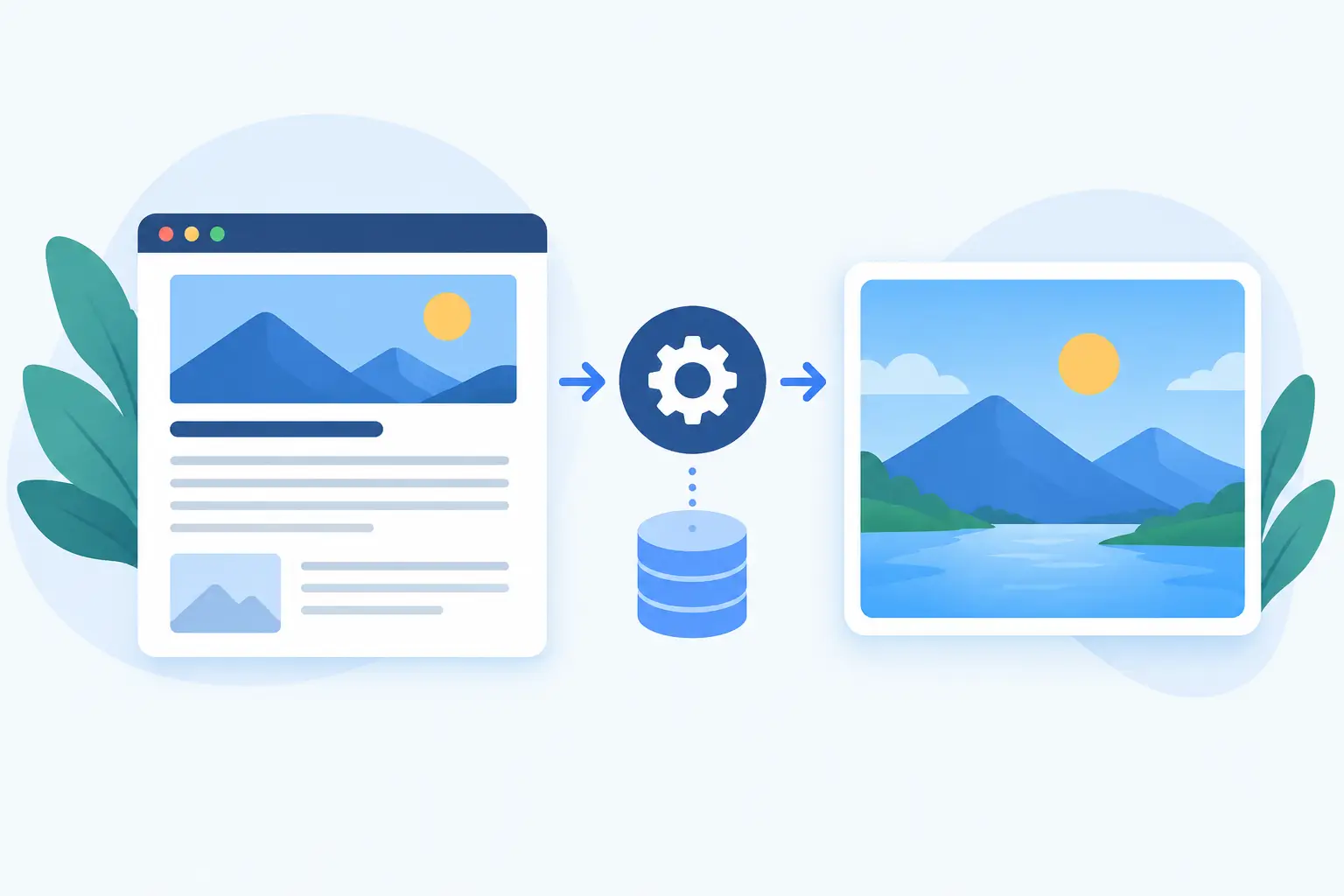
A great post can still arrive on LinkedIn, Slack, or iMessage looking like a grey box with a tiny logo. The usual cause is simple: the page has no useful social image, or every URL points to the same generic banner. When you generate OG images from page data, every shared page can carry its own title, photo, author, price, or release date without turning publishing into a design task.
That matters once your site has more than a handful of URLs. A blog, docs library, SaaS changelog, ecommerce catalog, or agency client site creates new pages continuously. Making a custom social card in Canva for each one is slow. Asking developers to build and maintain an image-rendering service is expensive. The better system is a branded design connected directly to the content you already publish.
What page-data-driven OG images actually do
Open Graph images are the visual cards shown when someone shares a URL. The page provides an `og:image` tag, and platforms such as X, Facebook, LinkedIn, WhatsApp, and Slack fetch that image before displaying the preview.
A page-data workflow separates the design from the content. You create a reusable visual layout once, then map elements in that layout to fields on each page. The card can pull a post title into the headline area, use the featured image as the background, add the author name, and place the site domain in a small footer.
The result is not one image copied across your site. It is a distinct rendered image for every eligible URL, built from the same brand system. Publish a new article, and its social card can be ready with the correct information. Update the title or featured image, and the next render reflects that change.
This distinction is where many teams get stuck. A template alone does not solve the production problem. A template still needs someone to open it, replace the text, export an image, host it, and update metadata. Dynamic mapping removes those repeated steps.
Start with the data already on your pages
Before designing anything, inspect a representative set of URLs. You are looking for fields that exist consistently and tell a useful story when a link appears in a feed.
For editorial content, that usually means the title, featured image, category, author, and publish date. A product page may need the product name, price, photo, availability, or discount. Documentation pages often work better with a clear page title, product area, version label, and a restrained branded background. SaaS landing pages may use the headline, a feature label, and a product screenshot.
Consistency matters more than stuffing every available field into the card. A social preview is scanned in seconds. The title should do most of the work. Supporting data should make the page feel credible or timely, not compete for attention.
Also check where each field lives. Depending on your stack, the source may be WordPress post data, Ghost fields, Webflow CMS collections, Next.js route data, structured metadata, or values your site exposes in HTML. The right integration should read the source your publishing team already maintains. Do not create a second content workflow just to feed social images.
Choose smart fallbacks before pages go live
Real websites are messy. Some posts have no featured image. Some product titles are too long. Some old docs pages are missing an author or category. A reliable system needs fallback rules rather than a pile of broken cards.
Use a default background when a featured image is absent. Set a maximum title length or allow the type to scale within a safe range. Hide optional fields when no value exists. For a page without an author, show the category or simply keep that area empty.
You should also decide which pages should not receive a custom card. Internal search results, account pages, thin tag archives, and utility URLs rarely need one. That keeps rendering focused on pages people are likely to share.
Design once for the way people actually see links
Most shared cards are viewed on a phone, in a fast-moving feed, or inside a team chat. That changes the design brief. A card does not need to explain the whole page. It needs enough contrast, hierarchy, and relevance to earn the click.
Start with a 1.91:1 canvas, commonly 1200 by 630 pixels. Keep key text away from the edges because platforms may crop differently. Use a readable headline size, strong color contrast, and one visual focal point. Your logo should be present but small. The page title and image are usually the reason someone stops scrolling.
If your site has distinct content types, use a small family of designs rather than forcing one layout onto everything. For example, articles can feature editorial photography, docs can use product color blocks, and case studies can highlight the customer logo or result. They should still feel like one brand. Shared typography, spacing, colors, and a consistent logo treatment do that job.
The trade-off is control versus complexity. One universal design is faster to launch and easier to govern. Section-specific designs are more relevant and can lift visual quality, but they require clear routing rules. Start with one dependable layout, then add variations where the content type truly benefits.
Map fields and build rules for every URL
This is the operational center of the workflow. Connect each design layer to a source field, then define when that design applies.
A typical article card might map the headline to the page title, the large image area to the featured image, and a small label to the category. The domain can be static. A product card can map the title, main product photo, and price, while a page-type rule sends only URLs under `/products/` to that design.
Test mappings with pages that stress the layout: the longest title, the shortest title, a missing image, an unusually tall photo, and a page with special characters. These are the pages that reveal whether text wraps cleanly and whether your fallback behavior is doing its job.
This approach also protects your publishing speed. Writers and marketers keep working in their CMS. Developers keep their existing application logic. The social image changes because the page data changes, not because someone remembered another task after publishing.
Publish the right OG tag without breaking your SEO setup
Rendering a good image is only half the job. Sharing platforms need to find it through the right metadata, typically the `og:image` tag in the page head. If your site already uses Yoast, Rank Math, or another SEO tool for titles and descriptions, the goal is to add or replace the image value without creating duplicate or conflicting tags.
Check the final HTML on a live page. There should be a clear canonical URL, a valid absolute image URL, and an `og:image` value pointing to the rendered card. The image host must be publicly reachable by platform crawlers. A beautiful asset behind authentication, blocked by a firewall, or generated too slowly will still fail when shared.
For custom sites, this might mean adding one dynamic meta-tag value in your layout or route template. For WordPress, Ghost, or Webflow, it may be handled through a lightweight integration or code injection. The implementation can be small, but it needs to be reliable for new and existing URLs.
Tools such as getwowlink are built around this handoff: create the visual system, connect your page data, render and host the images, and provide the image URL your site needs for its social metadata.
Treat caching as part of the publishing workflow
Social platforms cache link previews aggressively. That is good for speed, but it can make an updated card appear stubbornly unchanged. If you revise a headline, replace a photo, or fix a typo, the page may be correct while LinkedIn or X continues showing the old preview for a while.
Plan for that behavior. Make sure updated page data triggers a refreshed render, then use a platform preview or debugger tool to request a new crawl when a high-priority link needs immediate correction. Do not judge a change only from an old chat message or social post. Open a fresh preview check against the current page.
Caching rules vary by platform, so there is no universal promise that every network updates at the same moment. What you can control is whether the live page exposes the correct tag and whether the image URL resolves consistently.
Add a quality check that does not become another manual chore
The goal is not to inspect hundreds of cards one by one forever. The goal is to catch the failures that affect brand trust: missing images, clipped headlines, empty fields, wrong templates, and stale renders.
Review a small set of representative URLs after launching a new design or changing mappings. Include recent content, older content, each major page type, and edge cases. Then make link-preview checks part of launch QA for important campaigns, product announcements, and client handoffs.
For agencies and teams with several sites, this is especially valuable. A visual audit can quickly show which domains are still sending generic cards, which templates need attention, and where a content model is missing a field. Fixing the system once is better than repairing previews page by page.
Your shared links are often the first version of your site that a new person sees. Give them a real page-specific card, not a placeholder. When the design is connected to the data, every new URL has a better chance to look intentional the moment someone sends it.
