
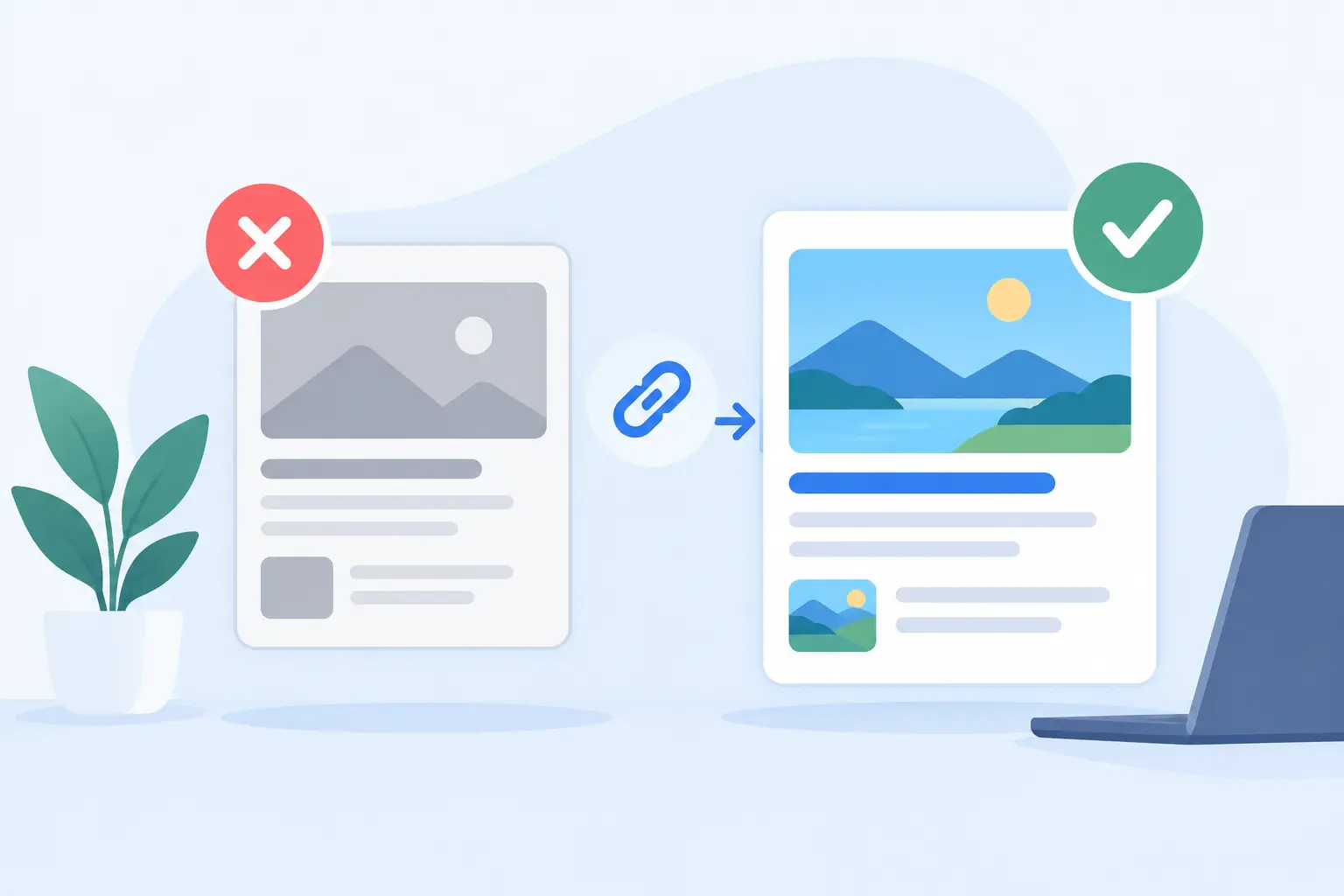
You update a launch page, publish a new featured image, and share the link. Then Slack shows last week’s headline. LinkedIn keeps the old screenshot. X displays a plain gray card. To prevent stale previews, you need to manage two separate things: the metadata your page publishes and the cached copy each platform has already saved.
This is not a cosmetic issue. A stale social card can send the wrong message during a product launch, make a sale look expired, or show a blog post before it has been edited. It also creates a credibility gap: your website looks current, but the link people actually see in chats, feeds, and DMs looks neglected.
Why shared link previews go stale
When someone pastes a URL into a social platform, the platform's crawler reads metadata from the page. For most platforms, that means Open Graph tags such as `og:title`, `og:description`, and `og:image`. The platform then stores that information so it does not need to fetch your page every time the link is shared.
That cache is the source of most stale-preview problems. Your CMS may show the new title immediately, while the social platform continues to display the version it collected yesterday, last month, or during an earlier test.
There are three common causes. First, the page is still serving old OG tags because a CMS, SEO plugin, CDN, or site cache has not updated. Second, the tags are correct but the image URL has not changed, so the platform keeps using an older copy of the image. Third, the platform has cached an incomplete version of the page after a temporary error, redirect, bot block, or slow server response.
The frustrating part is that one platform may be correct while another is stale. Each service crawls, interprets, and refreshes shared links on its own schedule. A preview that looks good in iMessage tells you very little about what will appear in LinkedIn or WhatsApp.
Prevent stale previews at the source
The reliable fix starts before cache refresh tools. Make every URL publish clear, complete, and stable metadata.
Give every shareable page its own OG data
Do not point every page on your site to one generic social image unless that is a deliberate brand choice. A homepage image on a blog post, documentation article, product page, or pricing update makes the link harder to understand at a glance.
Each page should have a specific title, description, canonical URL, and image. The image should be large enough for social cards, readable at small sizes, and consistent with your brand. For most use cases, a 1200 by 630 pixel image is a practical starting point.
Dynamic sites need extra attention. If your page title, author, price, date, or featured image changes, your OG image should reflect the same current data. Otherwise, you can refresh a cache all day and still distribute a card that is technically current but visually wrong.
Use image URLs that can change when the image changes
A fixed image URL is convenient until you replace the image behind it. Some crawlers notice the updated file quickly. Others retain the prior version for longer than you expect.
The safer approach is versioning. When the creative changes, use a new image URL, such as adding a version parameter or generating a new image path. That gives crawlers a clear signal that this is a different asset, not an old file that may already exist in their cache.
There is a trade-off. Creating new URLs for every tiny adjustment can make asset management messy. Use versioning for meaningful changes: a new campaign, changed headline, revised price, updated visual, or corrected typo. For evergreen pages, a stable URL may be perfectly reasonable if your rendering system can reliably update it.
Make sure crawlers can reach the real page
Social crawlers are not logged-in users. If they hit a cookie wall, a bot-protection challenge, an interstitial, or a redirect chain, they may not see the metadata you see in your browser.
Check that your final page returns a successful response, renders its OG tags in the initial HTML, and is available to standard crawler user agents. JavaScript-only metadata is risky because not every preview bot waits for client-side rendering. The same goes for preview images hosted behind authentication or on an environment that blocks external requests.
If you use a CDN or edge cache, purge it after changing metadata. Your origin may be updated while the crawler still receives an older HTML response from the edge.
A practical workflow for cache refreshes
Once your source metadata is correct, refresh the platform that is showing the stale card. Most major social platforms offer a developer-facing preview or debugging tool that lets you enter a URL and request a new scrape. These tools are useful because they show what the crawler actually found, not what your browser assumes is there.
Start by testing the exact URL being shared. `example.com/page`, `www.example.com/page`, a URL with a trailing slash, and a campaign URL with tracking parameters can be treated as separate cache entries. If your shared URL redirects, test both the original and final URL.
Then follow a simple sequence:
- Open the page source or a link-preview checker and confirm the current title, description, and image URL.
- Clear your website, CMS, or CDN cache if the source still shows old metadata.
- Request a re-scrape in the platform’s preview tool.
- Share the link in a private test channel or draft post to confirm the rendered result.
- Repeat only for platforms that still show an old card.
Do not mistake a successful scrape for an instant universal update. Some apps have additional caching layers, and recipients may see a previously generated preview inside an existing conversation. Test with a new message and, when possible, a clean URL variation after verifying that your canonical setup remains correct.
Build a system instead of fighting individual URLs
Manual cache refreshes are fine for a one-time launch. They become a bad operating model when you publish daily content, manage a marketplace with changing prices, or run campaigns across dozens of landing pages.
The bigger problem is not that caches exist. It is that manual social images and manually maintained metadata create too many opportunities for drift. A marketer updates a headline but forgets the OG title. A designer exports a replacement graphic but a developer never swaps the image URL. An agency publishes client pages that all share the same fallback card.
A better setup connects your site data to one reusable design. Design once, connect once, and let each URL render its own image from its own title, featured photo, author, price, or date. That makes the visual card part of publishing, rather than a task someone remembers after publishing.
getwowlink is built for this model. It can map page-level data into a branded OG image, host the rendered assets, and work alongside the SEO tooling already managing your site metadata. The key benefit is operational, not just visual: every current and future page has a system for getting its own card without reopening Canva or waiting on a developer.
When a stale preview is actually a metadata problem
Not every bad social card is a caching issue. If a refresh tool repeatedly shows the wrong title or image, look for a conflict in your metadata.
This often happens when multiple plugins, themes, or scripts output competing `og:image` tags. A crawler may select the first tag it finds, ignore an unsupported image format, or choose a fallback image because the intended asset is too small. Duplicate canonical tags and redirects can create similar confusion.
Inspect the page output, not just your CMS settings. You want one clear set of Open Graph tags for the final URL. If your site uses WordPress, Ghost, Webflow, Next.js, or a custom stack, the principle is the same: the server response must contain the values you expect when an external crawler requests it.
Also watch for image delivery failures. An image can look fine on your site but fail in social previews because the server sends the wrong content type, blocks hotlinking, times out, or requires a signed URL that expires. Reliable preview images should be publicly reachable and remain available long enough for platforms to crawl and display them.
Make preview checks part of publishing
The easiest way to prevent stale previews is to catch them before the link reaches customers, investors, teammates, or followers. Add a quick preview check to high-stakes publishing moments: launches, pricing changes, major announcements, sales, and newly redesigned pages.
For editorial teams, check the article URL after publication and before distribution. For product teams, test the final production URL rather than a staging page. For agencies, include social-card verification in the handoff checklist, especially after a theme migration or SEO-plugin change.
You do not need to refresh every platform for every routine post. That depends on the importance of the URL and where your audience shares it. But you do need a dependable source of truth, an image workflow that stays connected to your content, and a fast way to see what each platform will display.
A shared link is often the first version of your page people encounter. Treat that small card like a real publishing surface, and your next update will arrive looking current instead of looking cached.
