
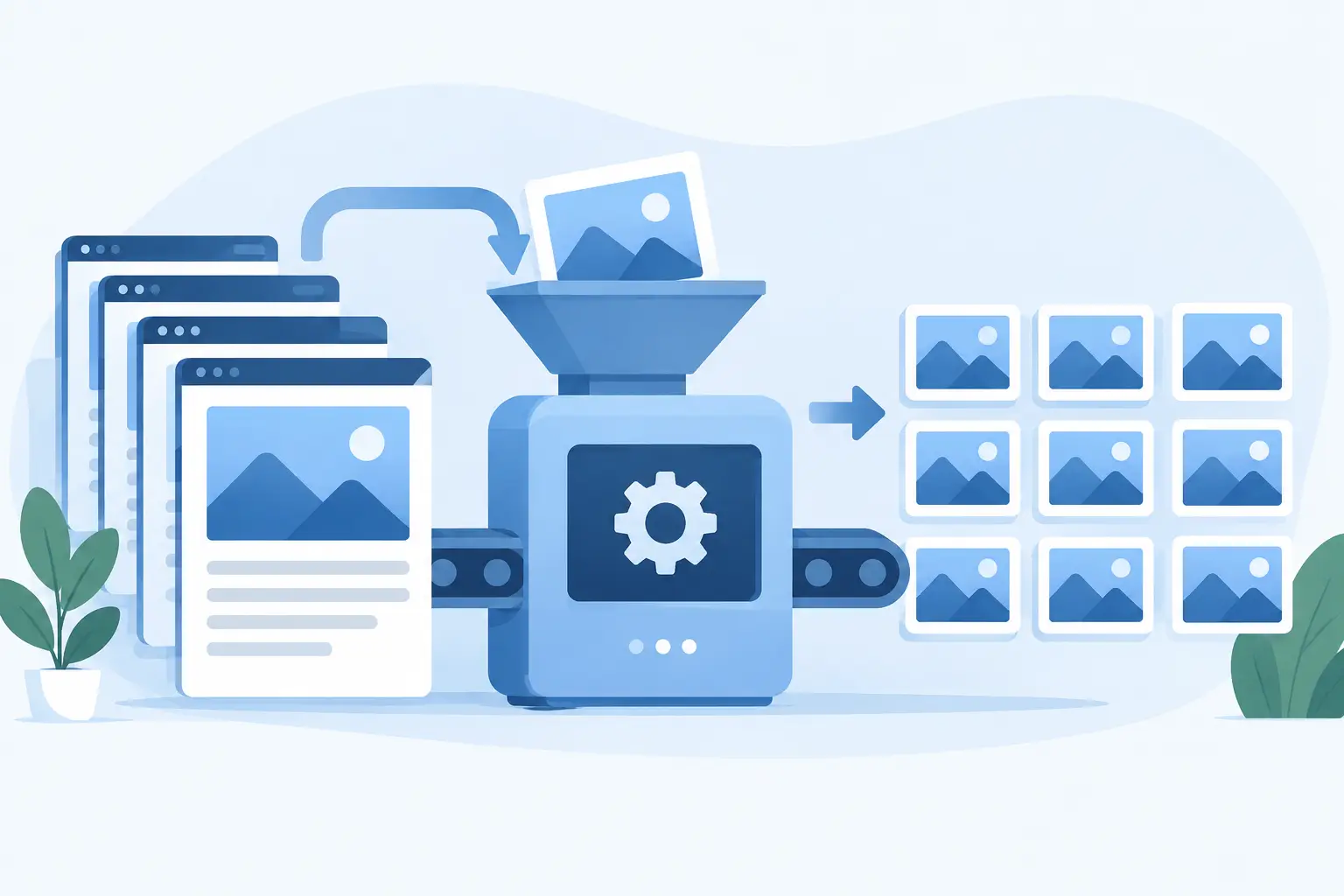
A shared link should not turn your carefully built page into a grey box, a random old image, or a card with a cut-off headline. Yet that is what happens when page thumbnails are treated as a one-time design task instead of part of publishing.
Learning how to automate page thumbnails means building a system where each URL gets a branded, accurate social preview without someone opening a design file for every new post, product, release note, or landing page. Design once. Connect once. Let the page data do the repetitive work.
For most websites, the “thumbnail” that matters is the Open Graph image. It is the visual card shown when someone shares your page in Slack, LinkedIn, X, Facebook, WhatsApp, iMessage, and other apps. It has a direct job: earn the click while making your brand look like it belongs in the feed.
Why manual thumbnails fail at content scale
Manual image creation works when you publish four pages a year. It breaks when your site has a growing blog, hundreds of documentation pages, a product catalog, programmatic landing pages, or a weekly release cycle.
The problem is not just time. A Canva-based workflow also creates inconsistency. One card uses the old logo. Another has a headline too small to read on mobile. A third was never made, so your social platform pulls a default image from somewhere else on the page. The result is a link preview that looks accidental.
Developer-built image generation can solve the scale problem, but it introduces a different trade-off. Someone needs to build templates, wire in page data, host images, handle fonts, manage rendering failures, and make every future visual change. Marketing teams end up filing tickets to change a background color.
The better model is to separate the work into two layers. Your team creates the visual system once. Your website provides the page-specific information automatically. Each new URL then receives its own image, using the same rules.
How to automate page thumbnails in five steps
1. Decide which pages need a distinct preview
Start with the pages people actually share or discover: blog posts, product pages, changelog entries, case studies, documentation articles, event pages, and key landing pages. These are not all the same content type, so they should not always use the same thumbnail layout.
A blog card may need a post title, author, and featured image. A SaaS product page may need a product screenshot, category, and short claim. A documentation page may work better with a clear title and a simple section label than with a busy stock photo.
Do not create a separate template for every page. Create a small set of purposeful designs, usually one per major content type or site section. This keeps the system recognizable and easy to maintain.
2. Build a template for real-world titles, not ideal ones
A thumbnail template should work when the headline is 35 characters and when it is 90. It should handle a page with a featured image and a page without one. It should still look intentional when an author photo is missing or a product name is longer than expected.
This is where many designs fail. The first test page looks great because its title is short and the image is perfectly framed. Then a longer article title overflows, a portrait crop looks strange, or a price field pushes other content out of place.
Use a clear hierarchy. Your page title should usually be the strongest visual element. Keep brand elements present but secondary. Leave safe space around text, because social platforms crop previews differently and mobile cards are small. A page thumbnail is not a miniature web page. It is a fast visual signal.
3. Map the fields your site already has
Automation becomes useful when the thumbnail pulls from the same source your page uses. In practical terms, that means mapping dynamic fields such as title, featured image, author, date, category, product price, domain, URL, or a custom label.
For example, every new blog post can populate its own headline and featured image. Every documentation article can display its title and documentation category. Every product page can pull in the product photo and current price. No copy-and-paste required.
Your mapping should include fallbacks. If a post has no featured image, use a branded background or a default section image. If an author is unavailable, omit that element rather than showing an empty circle. If a title is too long, use sensible text sizing and line limits.
These details are not glamorous, but they are what make automation reliable. A good system is designed for the messy edge cases that appear after your 50th or 500th page.
4. Connect the image to Open Graph metadata
Generating an image is only half the job. Social platforms need to know which image belongs to each page. That connection is typically made through the `og:image` meta tag in your page’s HTML.
When a crawler visits a URL, it reads the Open Graph tags and fetches the image referenced there. If the tag is missing, points to the wrong file, or still references a generic fallback, your carefully generated thumbnail will not appear in the shared card.
This is also why an automation tool should work with your existing SEO setup rather than replace it unnecessarily. WordPress sites may already use Yoast or Rank Math. Webflow and Ghost sites have their own metadata settings. Next.js and custom sites may generate tags in code. The thumbnail system needs to supply the right image URL for each page while preserving the metadata workflow you already trust.
With getwowlink, that means connecting a branded design to your website data and letting each page receive a rendered Open Graph image. The goal is simple: you do not make images any more. You publish pages, and their share cards stay current.
5. Test previews before you assume they work
A valid `og:image` tag does not guarantee every platform will immediately show the new card. Social networks cache previews aggressively. Slack, LinkedIn, X, Facebook, and messaging apps may each refresh at different times.
Test a representative sample before rolling out a template across the whole site. Check a short title, a long title, a page without a featured image, and a page from each content type. Look at the actual preview, not just the generated image file. Is the text readable? Is the right image loading? Does the card feel like your brand?
When you update a thumbnail design or replace an old image, allow for caching behavior. In some cases, a platform will continue to display the prior preview until it recrawls the page. That is not necessarily an implementation failure, but it is a reason to use a link-preview checker during setup and after major changes.
Choose the right automation level for your stack
The best approach depends on how your website is built and how frequently it changes.
If you run WordPress, Ghost, or Webflow, prioritize an integration that lets you connect page fields without asking a developer to maintain custom rendering code. Your team should be able to update a template, switch a design by section, and verify previews independently.
If you use Next.js, PHP, plain HTML, or a custom CMS, you may need a lightweight implementation that passes the current page URL or content data into your thumbnail workflow. The principle remains the same: render a unique image and expose it through the page’s Open Graph metadata.
For high-volume sites, performance matters. Do not force every social crawler to wait for a full image design process on demand if it can be avoided. Reliable systems render and host images in a way that stays fast when hundreds of pages are shared at once. They also make it easy to regenerate an image if a title, price, or featured asset changes.
Set rules before you automate
Automation amplifies whatever rules you give it. If your templates are unclear, your site can produce hundreds of unclear cards very quickly.
Set a few standards: use the same brand colors and logo placement, choose an approved type scale, decide which fields appear by content type, and define fallback imagery. Then review a batch of pages after launch. You are looking for repeatable issues, not perfection on one flagship URL.
Also assign ownership. Marketing may own the design system, content may own titles and featured images, and development may own the initial integration. Once the workflow is connected, routine publishing should not require all three teams. That is the payoff.
A page thumbnail is a small surface area with an outsized effect. Every time someone pastes one of your links into a conversation, that card represents your content before the click. Build the rules once, let your site fill in the details, and give every new URL a reason to stand out.
